Jump to content

Year

Day

24 ways to impress your friends

I’m not sure about you, but I still favour using Photoshop to create my designs for the web. I agree that this application, even with its never-ending feature set, is not the perfect environment to design websites in. The ideal application doesn’t exist yet, however, so until it does it’s maybe not such a bad idea to investigate ways to optimize our workflow.

Why use Photoshop?

It will probably not come as a surprise if I say that Photoshop and Illustrator are the applications that I know best and feel most comfortable and creative in. Some people prefer Fireworks for web design. Even though I understand people’s motivations, I still prefer Photoshop personally. On the occasions that I gave Fireworks a try, I ended up just using the application to export my images as slices, or to prepare a dummy for the client. For some reason, I’ve never been able to find my way in that app. There were always certain things missing that could only be done in either Photoshop or Illustrator, which bothered me.

Why not start in the browser?

These days, with CSS3 styling emerging, there are people who find it more efficient to design in the browser. I agree that at a certain point, once the basic design is all set and defined, you can jump right into the code and go from there. But the actual creative part, at least for me, needs to be done in an application such as Photoshop.

As a designer I need to be able to create and experiment with shapes on the fly, draw things, move them around, change colours, gradients, effects, and so on. I can’t see me doing this with code. I’m sure if I switch to markup too quickly, I might end up with a rather boxy and less interesting design. Once I start playing with markup, I leave my typical ‘design zone’. My brain starts thinking differently – more rational and practical, if you know what I mean; I start to structure and analyse how to mark up my design in the most efficient semantic way. When I design, I tend to let that go for a bit. I think more freely and not so much about the limitations, as it might hinder my creativity. Now that you know my motivations to stick with Photoshop for the time being, let’s see how we can optimize this beast.

Optimize your Photoshop workspace

In Photoshop CS5 you have a few default workspace options to choose from which can be found at the top right in the Application Bar (Window > Application Bar).

Workspace options

You can set up your panels and palettes the way you want, starting from the ‘Design’ workspace option, and save this workspace for future web work. Here is how I have set up things for when I work on a website design:
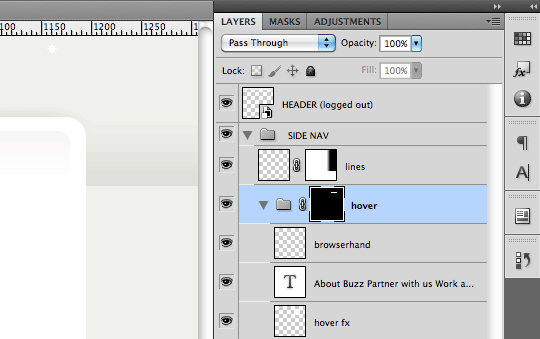
My panel palettes

I have the layers palette open, and I keep the other palettes collapsed. Sometimes, when space permits, I open them all. For designers who work both on print and web, I think it’s worthwhile to save a workspace for both, or for when you’re doing photo retouching.

Set up a grid

When you work a lot with Shape Layers like I do, it’s really helpful to enable the Grid (View > Show > Grid) in combination with Snap to Grid (View > Snap To > Grid). This way, your vector-based work will be pixel-sharp, as it will always snap to the grid, and so you don’t end up with blurry borders.
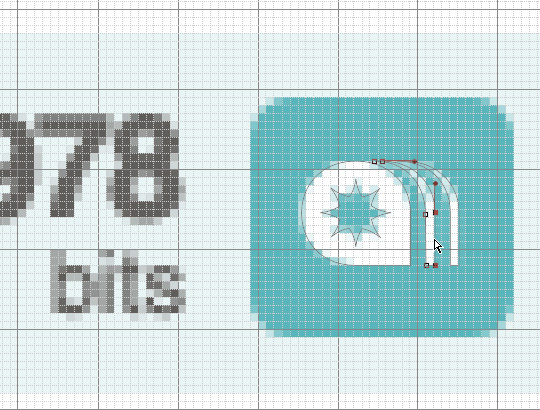
Grid example

To set up your preferred grid, go to Preferences > Guides, Grids and Slices. A good setting is to use ‘Gridline Every 10 pixels’ and ‘Subdivision 10’. You can switch it on and off at any time using the shortcut Cmd/Ctrl + ’.
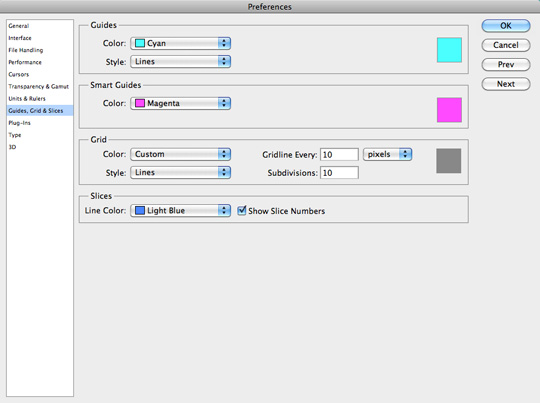
Grid settings

It might also help to turn on Smart Guides (View > Show > Smart Guides).

Another important tip for making sure your Shape Layer boxes and other shapes are perfectly aligned to the pixel grid when you draw them is to enable Snap to Pixels. This option can be enabled in the Application bar in the Geometry options dropdown menu when you select one of the shape tools from the toolbox.
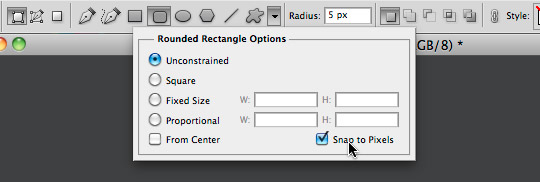
Snap to pixels option

Use Shape Layers

To keep your design as flexible as possible, it’s a good thing to use Shape Layers wherever you can as they are scalable. I use them when I design for the iPhone. All my icons, buttons, backgrounds, illustrative graphics – they are all either Smart Objects placed from Illustrator, or Shape Layers. This way, the design is scalable for the retina display.
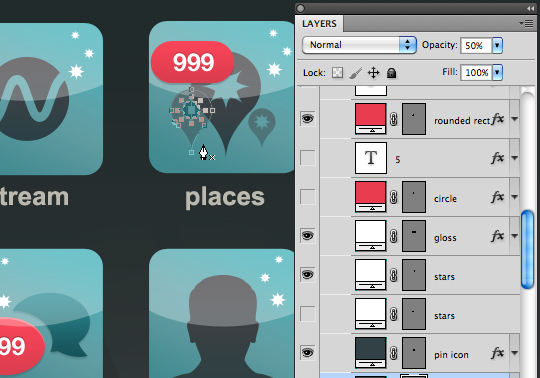
Shape layers example

Use Smart Objects

Among the things I like a lot in Photoshop are Smart Objects. Smart Objects preserve an image’s source content with all its original characteristics, enabling you to perform non-destructive editing to the layer. For me, this is the ideal way of making my design flexible.
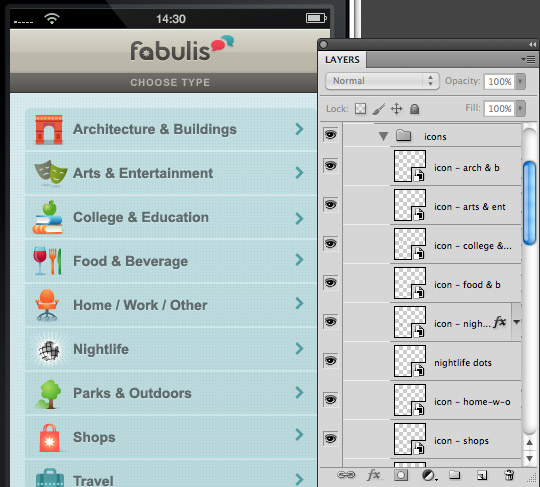
Smart objects (layers)

For example, a lot of elements are created in Illustrator and are purely vector-based. Placing these elements in Photoshop as Smart Objects (via copy and paste, or dragging from Illustrator into Photoshop) will keep them vector-based and scalable at all times without loss of quality.
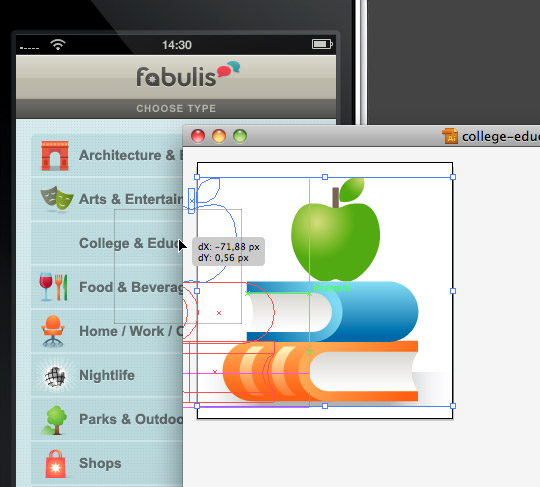
Smart objects (AI)

Another way you could use Smart Objects is whenever you have repeating elements; for example, if you have a stream or list of repeating items. You could, for instance, create one, two or three different items (for the sake of randomness), make each one a Smart Object, and repeat them to create the list. Then, when you have to update, you need only change the Smart Object, and the update will be automatically applied in all its linked instances.

Turning photos into Smart Objects before you resize them is also worth considering – you never know when you’ll need that same photo just a bit bigger. It keeps things more flexible, as you leave room to resize the image at a later stage. I use this in combination with the Smart Filters a lot, as it gives me such great flexibility.
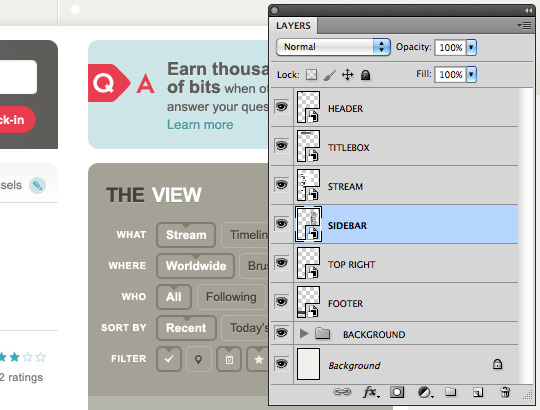
Smart objects

I usually use Smart Objects as well for the main sections of a web page, which are repeated across different pages of a site. So, for elements such as the header, footer and sidebar, it can be handy for bigger projects that are constantly evolving, where you have to create a lot of different pages in Photoshop.

You could save a template page that has the main sections set up as Smart Objects, always in their latest version. Each time you need to create new page, you can start from that template file. If you need to update an existing page because the footer (or sidebar, or header) has been updated, you can drag the updated Smart Object into this page. Although, do I wish Photoshop made it possible to have Smart Objects live as separate files, which are then linked to my different pages. Then, whenever I update the Smart Object, the pages are automatically updated next time I open the file. This is how linked files work in InDesign and Illustrator when you place a external image.

Use Layer Comps

In some situations, using Layer Comps can come in handy. I try to use them when the design consists of different states; for example, if there are hidden and show states of certain content, such as when content is shown after clicking a certain button. It can be useful to create a Layer Comp for each state. So, when you switch between the two Layer Comps, you’re switching between the two states.
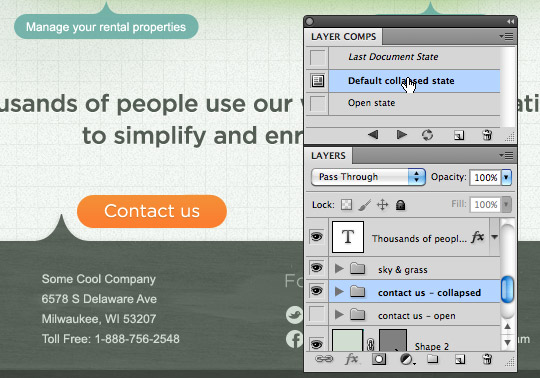
Layer comps

It’s OK to move or hide content in each of these states, as well as apply different layer styles. I find this particularly useful when I need to save separate JPEG versions of each state to show to the client, instead of going over all the eye icons in the layers palette to turn the layers’ visibility on or off.
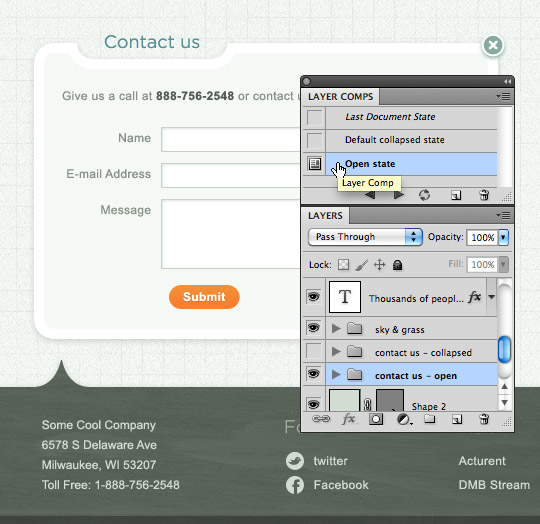
Layer comps

Create a set of custom colour swatches

I tend to use a distinct colour Swatches palette for each project I work on, by saving a separate Swatches palette in project’s folder (as an .ase file). You can do this through the palette’s dropdown menu, choosing Save Swatches for Exchange.
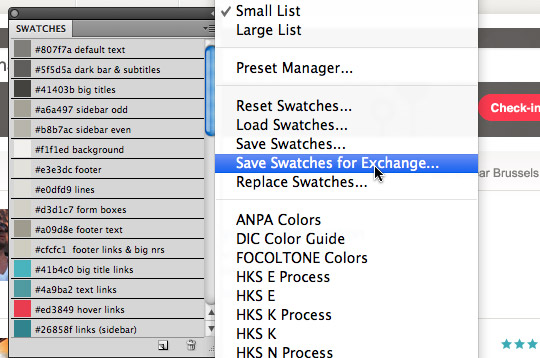
Saving colour swatches

Selecting this option gives you the flexibility to load this palette in other Adobe applications like Illustrator, InDesign or Fireworks. This way, you have the colours of any particular project at hand. I name each colour, using the hexadecimal values.
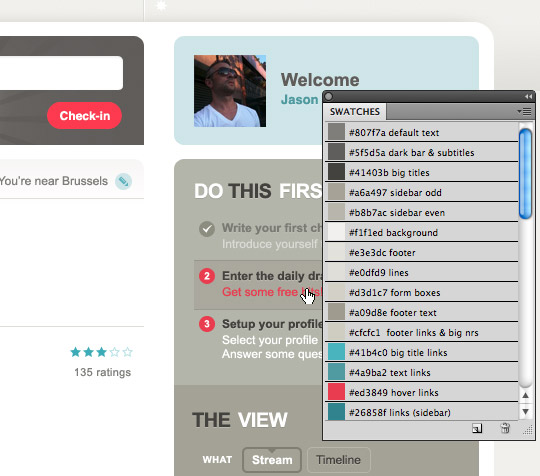
Colour swatches

Loading, saving or changing the view of the Swatches palette can be done via the palette’s dropdown menu. My preferred view is ‘Small List’ so I can see the hexadecimal values or other info I have added in the description.

I do wish Photoshop had the option of loading several different Styles palettes, so I could have two or more of them open at the same time, but each as a separate palette. This would be handy whenever I switch to another project, as I’m usually working on more than one project in a day. At the moment, you can only add a set of colours to the palette that is already open, which is frustrating and inefficient if you need to update the palette of a project separately.

Create a set of custom Styles

Just like saving a Swatches palette, I also always save the styles I apply in the Styles palette as a separate Styles file in the project’s folder when I work on a website design or design for iPhone/iPad. During the design process, I can save it each time styles are added. Again, though, it would be great if we could have different Styles palettes open at the same time.
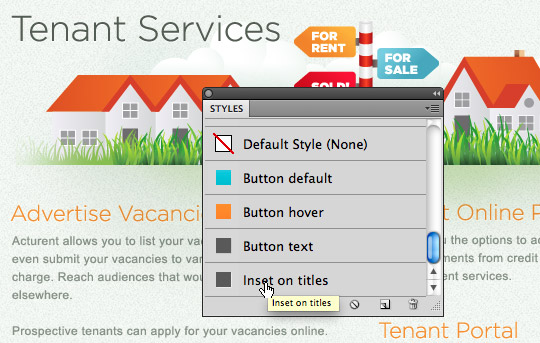
Creating custom Styles

Use a scratch file

What I also find particularly timesaving, when working on a large project, is using some kind of scratch file. By that, I mean a file that has elements in place that you reuse a lot in the general design. Think of buttons, icons and so on, that you need in every page or screen design. This is great for both web design work and iPad/iPhone work.
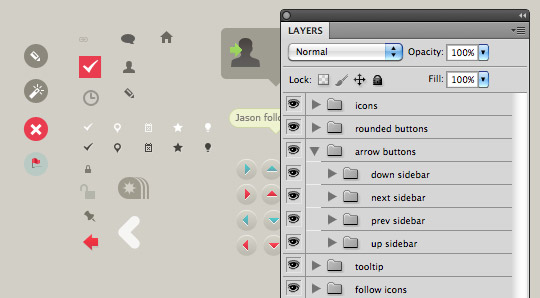
Example of a scratch file

Use the slice tool

This might not be something you think of at first, because you probably associate this way of working with ‘old-school’ table-based techniques. Still, you can apply your slice any way you want, keeping your way of working in mind. Just think about it for a second. If you use the slice tool, and you give each slice its proper filename, you don’t have to worry about it when you need to do updates on the slice or image. Photoshop will remember what the image of that slice is called and which ‘Save for Web’ export settings you’ve used for it. You can also export multiple slices all at once, or export only the ones you need using ‘Save selected slices’.
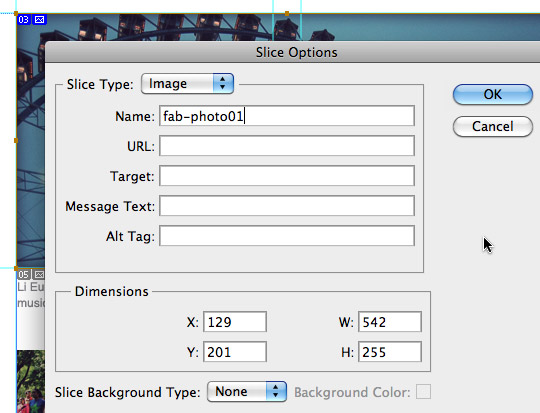
Using the slice tool

I hope this list of optimization tips was useful, and that they will help you improve and enjoy your time in Photoshop. That is, until the ultimate web design application makes its appearance. Somebody is building this as we speak, right?

Like what you read?

Comments

Comments are ordered by helpfulness, as indicated by you. Help us pick out the gems and discourage asshattery by voting on notable comments.

Got something to add? You can leave a comment below.

  • AngleGrinder

    In regards to where you’re talking about enabling the grid, configuring your sub division, and Snapping to said grid:

    When I’m zoomed in, my beziers don’t snap to the grid when I’ve got one selected and nudging it with my keyboard arrows. When I zoom out to 100%, it nudges at 1 pixel at a time. Any way to get bezier nudging while zoomed in so it doesn’t land on a half pixel? I use shift+nudging to jump 10…but sometimes that’s too much.

    Vote Helpful or Unhelpful

  • ade

    great work, i will be using some of your suggestions, thank you

    Vote Helpful or Unhelpful

  • Robin

    Learn firework and you’ve already optimized your work flow :)

    Vote Helpful or Unhelpful

  • Nicolas Chevallier http://www.nicolas-chevallier.fr/

    I admire your work, some screenshots showing how you are conscientious and a perfectionist. I hope to someday hire you for a project:)

    Vote Helpful or Unhelpful

  • prisca http://graphiceyedea.co.uk

    Veerle,
    thanks for another great article :) Especially liked your points about the scratch file – the most useful way to work, I always find.
    (though I cannot find myself using the slicing any longer, never seems flexible enough for my workflow).

    Vote Helpful or Unhelpful

  • Russell Bishop http://www.digital-results.com/

    Some excellent tips here, straight after reading them I wondered why on earth I hadn’t been doing that already!

    Also glad that you raised the point about using Photoshop for the design, I’ve stuck by my guns about this too. You can’t be truly ‘creative’ when you’re in the confines of markup and stylesheets!

    Thanks for the read, veerle!

    Vote Helpful or Unhelpful

  • Francesco http://www.behance.net/designabile

    Useful suggestions Veerle, I have just set Ps according to them.

    Vote Helpful or Unhelpful

  • Peter Wright http://www.f-90.co.uk

    What is your opinion of Indesign as a web solution? Since CS5 a lot of the changes they’ve made have enabled me to be more flexible, creative and productive for web projects. Photoshop’s lack of character and paragraph styles is baffling and infuriating when working on a large project.

    This solves your problem with linked files also. A combination of Photoshop, Illustrator and Indesign is perfect for my use. However much we hack it around to be so, Photoshop just simply is not a good layout tool.

    Vote Helpful or Unhelpful

  • Alan Tyla http://www.motors.co.uk

    Nice article, though I’m heavily based in the Fireworks group and everything stated there is how I’ve worked in Fireworks for years. Always had the view that Photoshop was and still is primarily a print/photographic tool, unlike Fwks which is specifically aimed at website design.

    With the latest CS5 version, the boundaries between Photoshop and Fwks have merged.

    My main plus for Fwks is file size. I can produce a layered document just as per photoshop yet the filesize in almost a 10th of a PSD, saving a lot of work with exporting for previews as I can just fire the original PNG across.

    Vote Helpful or Unhelpful

  • Veerle Pieters http://veerle.duoh.com

    @ANGLEGRINDER if you use the arrow keys you always jump at a certain fixed distance, and so the snapping has no influence on that. While if you drag it has, or at least it should :) Hope this info helps.

    @ADE, @NICOLAS CHEVALLIER, @NICOLAS CHEVALLIER, @PRISCA and @RUSSELL BISHOP thanks! :)

    Vote Helpful or Unhelpful

  • Metin Saylan http://shailan.com

    I’m sure if I switch to markup too quickly, I might end up with a rather boxy and less interesting design.

    Yea, nice catch there. I’ll surely start using those tips with my next design. Thanks.

    Vote Helpful or Unhelpful

  • Tom Ronda http://www.tomronda.com

    Good article, good tips. Interestingly I’ve developed similar ways of increasing my efficiency (using smart objects for repetitive elements, repository file)

    Vote Helpful or Unhelpful

  • Frances http://www.durablegoodsdesign.com

    Fantastic!

    I’m mired in a whole bunch of Photoshop mockups right now — it’s great to be reminded of the ways I can save time while designing.

    Like your scratch file, I also sometimes use a “master file” which contains some of the main layout scenarios for a project. That way, I can grab a whole folder full of layout components to apply to a particular page or section of a site, in the event that I have to work on multiple PSDs at once.

    Vote Helpful or Unhelpful

  • Mazilu Teodor http://www.forum2point0.net

    Interesting article with nice tips, although I wish it weren’t about Photoshop but about design in general. Not every designer uses Photoshop, you know?

    Vote Helpful or Unhelpful

  • Veerle Pieters http://veerle.duoh.com

    @PETER WRIGHT InDesign has features I wish Photoshop had like multi pages and the fact that you can link external images into your document, then of course the typographical advantages such as character and paragraph styles (which is also there in Illustrator), the way you can flow text etc. But in its current state I don’t see myself using it for web design. It’s really print oriented.

    @MAZILU TEODOR most tips I mentioned can be applied in other apps as well.

    Vote Helpful or Unhelpful

  • Hans Verhaegen http://www.hansup.be

    Great inside tips for Photoshop users from a great designer. I am (was) a Photoshop user too. And I agree that Fireworks is not that easy to start with. The master page, pages, states, layers part is really confusing in the beginning. But once you do try, and understand the basics and beyond, it is just amazing. Fireworks is really 100% made for web design. It just feels more natural and has, I have to admit, a much better workflow. I think it is a good thing for a designer to change her or his software once and in a while. Designing skills should not depend on the software.

    Vote Helpful or Unhelpful

  • Kevin

    The scratchboard is just one of the things I’ve been using more and more lately. It’s funny how I never though to use one before but when it comes to designing apps it makes it very easy to have all your pervasive elements there.

    I’ve got a bit of a love/hate relationship with the layer comps. It’s such a power full tool that just seems to be partially implemented. I definitely have to pull back from using them and work more with additional PSDs.

    Vote Helpful or Unhelpful

  • Raphael Essoo-Snowdon

    Thanks for the insightful post Veerle, you’ve taught me more than a few tricks today that should help my workflow. Thanks again!

    Vote Helpful or Unhelpful

  • klickreflex http://klickreflex.de

    I can so relate to this. I tried several times “leaving” Photoshop for Fireworks or other apps. Although being a big fan of 37signals a code-centered design process never worked out for me.
    Glad to know there are people who’ve made the same experience.

    Vote Helpful or Unhelpful

  • DRoss http://htmlemailgallery.com

    One of the best posts so far this year. Because it deals with and explains very useful PS workflow techniques which are very helpful in creating detailed designs.

    I use most of the techniques Veerle mentions here and can tell you, if you’re a beginner or novice to incorporate and use these techniques now. Your designs will come out much more polished and you’ll save yourself time once you get the hang of it.

    Awesome writeup Veerle,
    DRoss

    Vote Helpful or Unhelpful

  • Peter Wright http://www.f-90.co.uk

    @VEERLE PIETERS – Indesign certainly is print oriented, but it’s certainly changed. For me, neither Illustrator or Indesign is a competent layout application. I mean, Can you even display the rulers in pixels in Illustrator yet? It’s horribly cumbersome as soon as you import images as well.

    Illustrator and Photoshop are, for me, asset creation tools these days, as is their main purpose.

    Master pages, live non-destructive image cropping and resizing, the typographic control – I can’t see a compelling reason for not using Indesign. How much of a hassle is it in Photoshop to change to corner radius on all of the different sized buttons you might have?

    Vote Helpful or Unhelpful

  • Basil Mohammad http://www.ParanoidDesigner.com

    Thanks alot for the article helped me get organized with my photoshop again :).

    I truly believe that for most of us designers, the biggest time waster is the process in which we work with the developers of the site, be that programers/coders or simply marketers.

    I would much rather have an article about methods and ways to deal with such birocracy.

    anyone knows a good article?

    Vote Helpful or Unhelpful

  • Fws

    Nice tips for Ps-based web design. I prefer Fireworks for UI work though. I got real comfortable designing in Ai before switching to Fws and haven’t looked back since. Fws CS5 has some really impressive tools for drawing too…all the same workflows you would use in Ai. For interface design in Fws, using its multiple pages, property panel, slice management, and various creative commands make prototyping in Fws not only powerful but efficient. Oh, and Fws runs twice as fast as Ps…real handy if your designing on a slow machine or are running millions of apps at once like I do :-)

    Thanks for the article!

    Vote Helpful or Unhelpful

  • Kevin Sweeney http://www.reconstitute.net

    Excellent tips and tricks for making PS comps for the web. I find that I no longer make use of the slice tool. It was great for table-based designs, but nearly every image I export these days tends to have some type of transparency and/or need for sliding doors based design. Everything else is bound to go into an image sprite.

    How many people out there are still using this tool?

    Vote Helpful or Unhelpful

  • Markus http://www.markus-falk.com

    there is nothing you can do in Photoshop that isn’t also possible in Fireworks … except for editing Photos properly which is of course what Photoshop is made for.

    That leads to what Fireworks was made for and that is to design websites properly :)

    why don’t you give it another try: 50 reasons NOT to use Photoshop for Web Design

    :)

    Vote Helpful or Unhelpful

  • Robin Parker http://www.robinparker.co.uk

    Like Russell, I’m really pleased that you’ve made the point about designing in Photoshop rather than the browser. If we all designed purely in CSS3, I really think the web would start to become a very dull (and generic) place indeed!

    Vote Helpful or Unhelpful

  • Tony Price http://tonyxprice.com

    Good to know that I already use a lot of these practices in my workflow. And I gotta say that I still use the slice tool, but only for email campaigns since those are still table-based for the most part.

    Thanks, Veerle!

    Vote Helpful or Unhelpful

  • Henk http://www.inktknal.com

    I understand your opinion but personally I think that it is just a way of doing things.
    Some people will work better, using photoshop first (I like your designs by the way Veerle, I follow you also on your blog duoh) and others just start using css.
    I also think that if you use Photoshop first you will use to many images instead of using all the features of css.

    I’m curious what David DeSandro (wrote day 14 of the 24ways post of 2010) will think of your approach.

    Vote Helpful or Unhelpful

  • Nick http://www.grafik.co.nz

    Nice tips, a few here that are new to me thanks!

    Vote Helpful or Unhelpful

  • Veerle Pieters http://veerle.duoh.com

    Thanks everyone for the great comments. I was expecting some Fireworks feedback here and I’m glad people did. It looks like I need to read that article that @MARKUS is linking to, and maybe give Fireworks another try as well. I think it’s good to always keep your options open, and decide what works best for you.

    @PETER WRIGHT in Illustrator it’s possible to adjust the corner radius if you have it applied via an effect, and if you have saved this effect as a style. Then when you edit that style and update it via the styles palette, it will update all elements that have that style applied. But you are right, in Photoshop I believe it’s not that flexible. Also, you can change your rulers to pixels in Illustrator, I believe that option is there already since a couple of versions.

    Vote Helpful or Unhelpful

  • Nick Silva http://www.wingnutart.com

    I loved all these tips about PS; forget web design, this is the RIGHT way to use PS! The Adobe Evangelist Dr. Russell Brown has a series of podcasts about the power and flexibility of these tools and represent the real advantage that CS has right now.
    http://www.russellbrown.com
    http://tv.adobe.com/show/dr-browns-photoshop-laboratory/

    You could probably make a great case for InDesign to be used for website layout tool (especially by applying graphic styles for elements). I have often favored Illustrator, but it does such a piss-poor job of kicking out raster versions. From the sound of the comments, I guess I’m a candidate for learning Fw’s, too. Sometimes though, it feels like I’m killing an angel if I’m not designing in the browser….

    Great job Veerle, great food for thought.

    Vote Helpful or Unhelpful

  • Harm http://www.harmwimmenhove.nl

    In the past 2 years I have learned that Photoshop isn’t meant for webdesign. And layer comps suck bigtime when you need to change something afterwards.

    You definitely should give Fireworks a go. It uses pages. Has find and replace (not only for text, also for colors(!)).
    And then there’s symbols. You got to love it. Change a symbol and it’s changed everywhere. It will give you a month extra time every year. Hooray! I can’t emphasize it more – use Fireworks CS5! It runs smooth and the learning curve is not that steep. Command+K snaps your object to pixels for instance, no more fuzzy aliassing! It even has automated back-ups in case of crashes.

    Vote Helpful or Unhelpful

  • Rajveer Singh Rathore http://www.inspiredbuddy.com

    I thought I was fast with Photoshop, until I read this article about using Custom Styles and Layer Comps that would make me efficient as well. Awesome!

    I tried using Fireworks sometimes earlier, but I am so much in love with Photoshop that I could never actually finish any single project using Fireworks.

    More I get to experience things practically and via some readings about PS vs. FW truths such as: http://www.reinegger.net/50_reasons_not_to_use_photoshop_for_webdesign.html more I force my heart to switch to Fireworks – sadly PS is still a winner till now!

    Vote Helpful or Unhelpful

Impress us

Be friendly / use Textile

About the author

Veerle Pieters

Veerle Pieters is a graphic/web designer based in Deinze, Belgium. Starting in ’92 as a freelance graphic designer, Veerle worked on print design before focussing more on webdesign and GUI (since ’96). She runs her own design studio Duoh! together with Geert Leyseele. Veerle has been blogging since 2003 and is considered number 39 on the list of “NxE’s Fifty Most Influential ‘Female’ Bloggers“.

More information

Brought to you by:

Perch - a really little cms

The easiest way to publish fast, flexible HTML5 websites your clients will love.