Random Lines Made With Mesh

I know that Adobe Illustrator can be a bit daunting for people who aren’t really advanced users of the program, but you would be amazed by how easy you can create cool effects or backgrounds. In this short tutorial I show you how to create a cool looking background only in 5 steps.
Step 1 – Create Lines
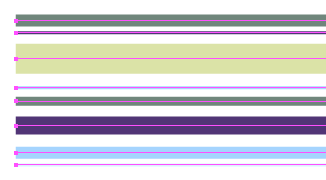
Create lines using random widths and harmonious suitable colors. If you get stuck on finding the right colors, check out Adobe’s Kuler and start experimenting.
Step 2 – Convert Strokes to Fills
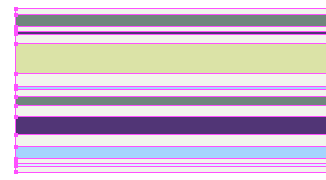
Select all lines and convert them to fills. Go to the Object menu, select Path > Outline Stroke. Select the Rectangle tool and draw 1 big rectangle on top the lines. Give the rectangle a suitable color. With the rectangle still selected, go to the Object menu, select Arrange > Send to Back.
Step 3 – Convert to Mesh
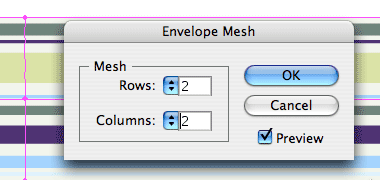
Select all objects by pressing the command key (for Mac users), control key (for Windows users) + the “a” key. Go to the Object menu and select the Envelope Distort > Make with Mesh option. Enter 2 rows and 2 columns. Check the preview box to see what happens and click the OK button.
Step 4 – Play Around with The Mesh Points
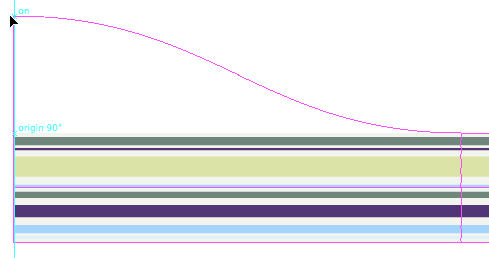
Play around with the points of the mesh using the Direct Selection tool (the white arrow in the Toolbox). Click on the top right point of the mesh. Once you’re starting to drag hold down the shift key and move the point upwards.
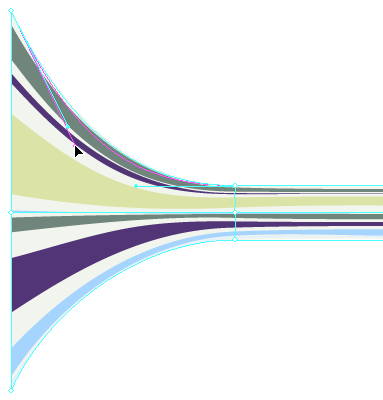
Now start dragging the bezier handles on the mesh to achieve the effect as shown in the above picture. Of course you can try out all kind of different effects here.
The Final Result

This is an example of how the final result can look. You can try out all kinds of different shapes dragging the handles of the mesh points. This is just one of the many results you can get. So next time you haven’t got inspiration for a background of a header, a banner or whatever, just experiment with a few basic shapes such as lines and try out the ‘Envelope Distort’ options in Illustrator or the ‘Make with Mesh’ option and experiment, you’ll be amazed by the unexpected creative results.
About the author
Veerle Pieters is a graphic/web designer based in Deinze, Belgium. Starting in ’92 as a freelance graphic designer, Veerle worked on print design before focussing more on webdesign and GUI (since ’96). She runs her own design studio Duoh! together with Geert Leyseele. Veerle has been blogging since 2003 and is considered number 39 on the list of “NxE’s Fifty Most Influential ‘Female’ Bloggers“.
Brought to you by

Related articles
-
Art Direction and the New WordPress Editor
Mel Choyce explores how the new WordPress editor (also know as Gutenberg) can be used to create more carefully art directed posts. Like gifts carefully arranged beneath the Christmas tree, it’s the contents that matters but the presentation that sells.
-
Be the Villain
Eric Bailey asks us to take on the role of King Herod in our projects to consider how the products, services and processes we design could be abused to cause harm rather than to do good. No matter how good our intentions, we must remember that not every user has pure motivations and that every tool is a weapon if you hold it right.
-
Creating a Weekly Research Cadence
Wren Lanier sets aside time to explore the benefits of a regular schedule for user research. Santa’s elves quickly discovered the benefits of working to a fixed schedule, which is of course why we don’t get presents at Easter.
-
How to Do a UX Review
Joe Leech offers a rundown on his UX review process, sharing tips about analysing data and creating personas, and setting out findings in a form that benefits clients. From quick wins to workshops, there are gifts here everyone will be grateful for.
-
How to Use Audio on the Web
Ruth John lets the bells ring out for Christmas with a look at a selection of inspiring sites with creative and effective use of audio. The days of jangly MIDI tunes to distract and annoy are thankfully long behind us, with browser APIs offering new and exciting ways to generate sound. Ahead is a beautiful sonic landscape. Ding dong!
-
What I Learned about Product Design This Year
Meagan Fisher casts a thoughtful glance back over her work this year and considers what it means to design a product rather than a marketing experience. Pour yourself a cup of eggnog, grab a mince pie or two and gather around the fireside. Are you sitting comfortably? Good, then we shall begin.